
Receipt scanner
A receipt scanner for contractors that keeps the photo on your phone.
Snap the lumber yard receipt. ProBos reads the total, the store and the sales tax, and the cost lands on the job.
 First month freeGoogle Play · Coming soon
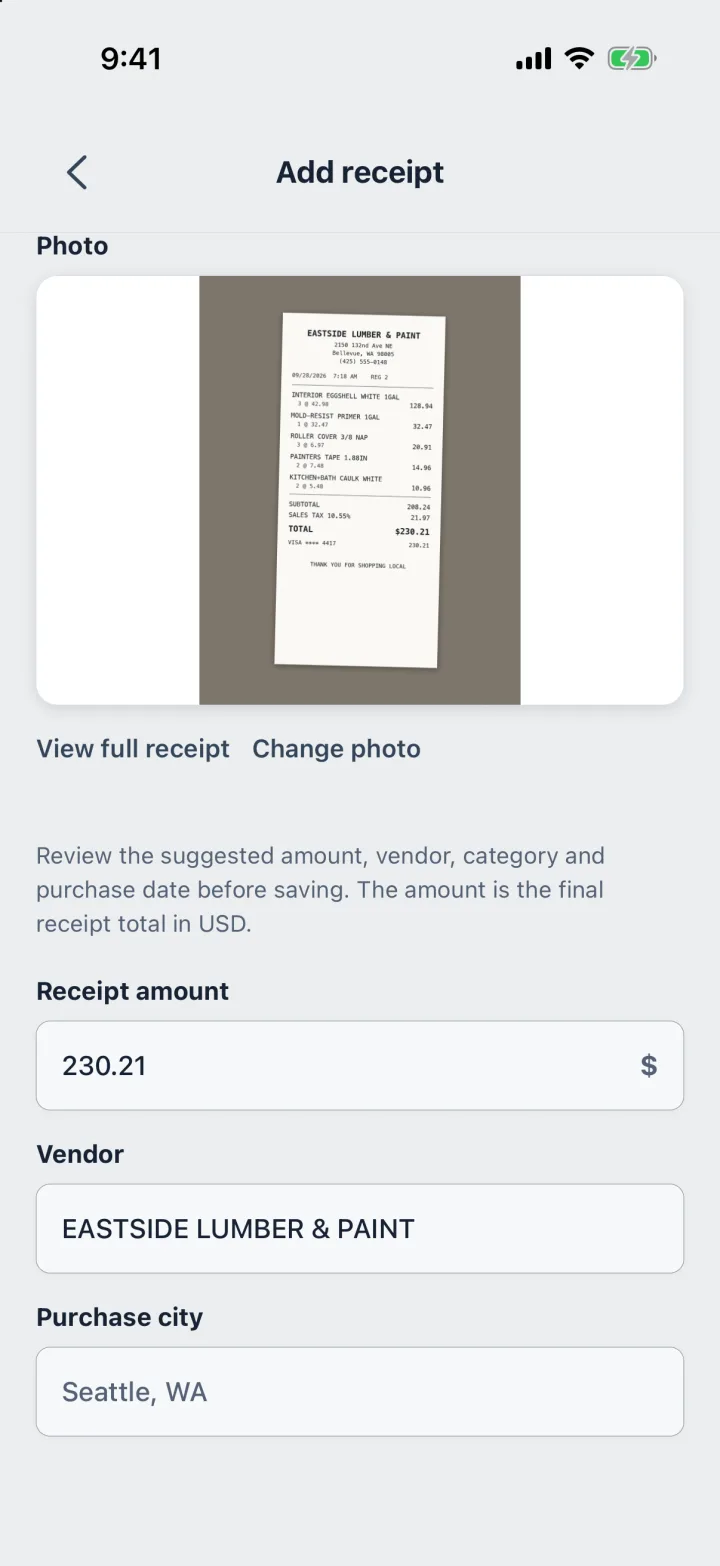
Real screen · ProBos demo data
From the store counter to your accountant.
Costs go in when you buy, not into a shoebox at tax time.
Step 1
Snap the receipt
Photo · Total · Store · Tax
Take a photo or pick one from your library. ProBos reads the total, the store and the sales tax, and you check them before saving.
Step 2
Put it on the job
Materials · Tools · Travel
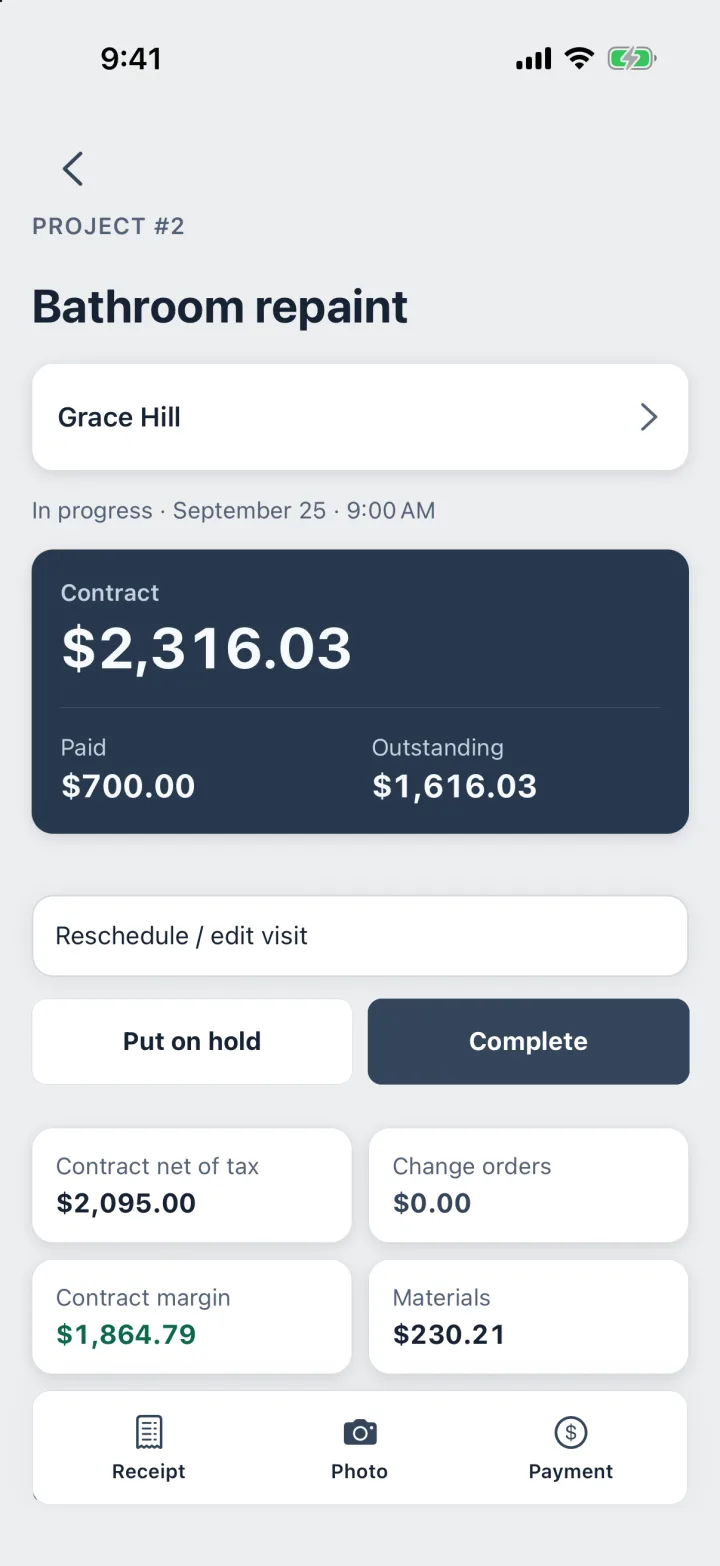
Choose the job and a category. The cost counts against that job right away, next to the contract and the payments.
Step 3
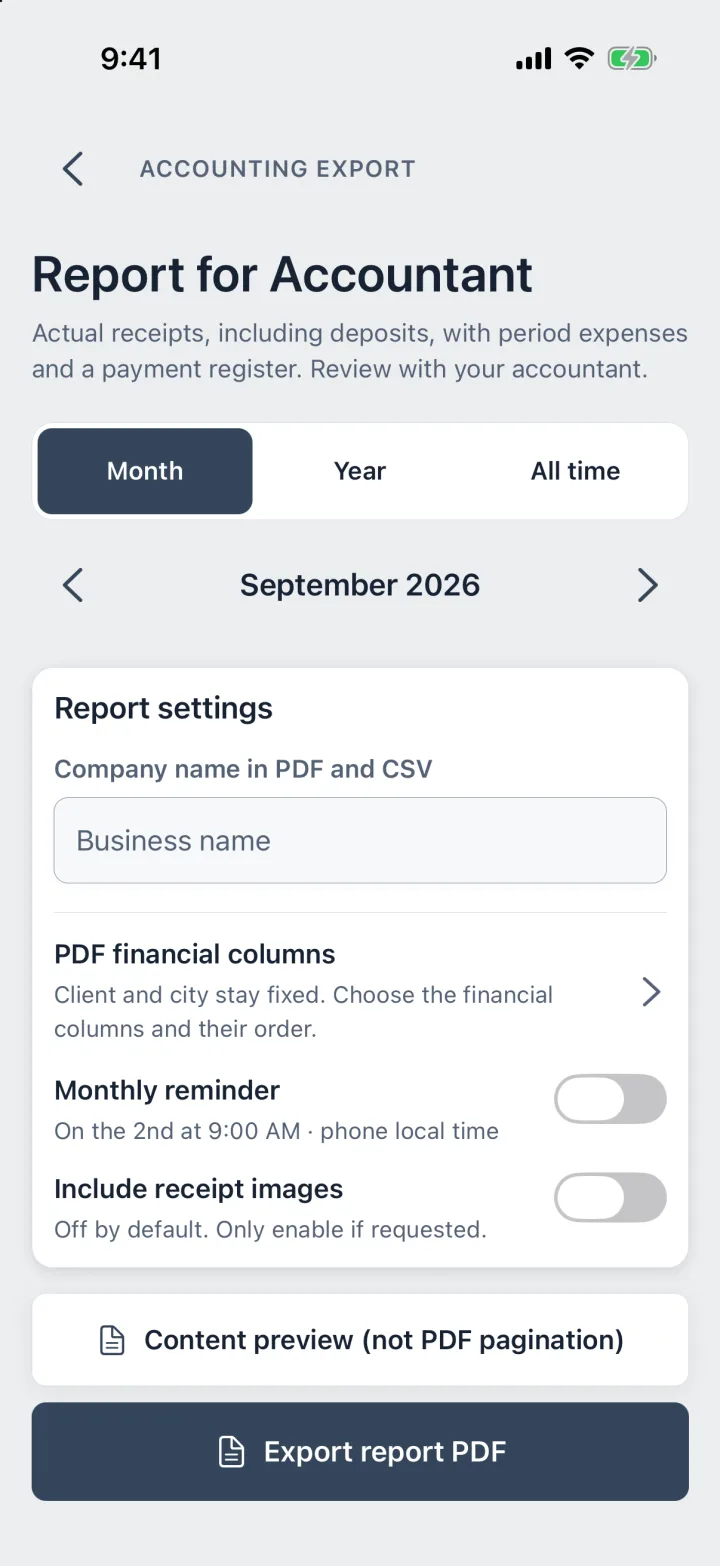
Hand it to your accountant
PDF · CSV · Receipt images
Every receipt goes into the month’s report, with the photos attached if your accountant wants them.
See what each job really cost.
Receipts sit on the job they belong to, so the numbers are ready when you need them.
- Materials, tools, travel, subcontractor and other categories
- Sales tax read from the receipt and never added twice
- The contract margin after materials, on every job
- Business costs that belong to no job, tracked too
Text recognition runs on your phone. Receipt photos are never uploaded to ProBos.
Questions
Is my receipt photo uploaded anywhere?
No. ProBos reads the receipt on your phone, and the photo stays there. You choose whether it goes into a report or a backup file.
What does it read from the receipt?
The total, the store name and the sales tax. It does not read the date: you set it, and it starts as today.
What if it reads something wrong?
You see the total, the store and the tax before saving and can fix any of them. Nothing is saved until you tap Save.
Can I add a receipt without a photo?
Yes. The photo is optional; type the amount and the store by hand.
Your next job,
from call to paid.
Estimate, job, receipts, invoice and payment in one app.
First month freeGoogle Play · Coming soon